iPhone Storage Full but iCloud Has Space? Here's What's Actually Happening
If your iPhone says Storage Almost Full but you just paid for iCloud, you're not crazy. Here's the mental model, plus the 5 fixes, in order of likelihood.
Favvy Team
If your iPhone says Storage Almost Full but you just paid for 200GB of iCloud, you're not crazy. Apple's two storage products share a name and don't share the same space. Buying iCloud doesn't free your iPhone, and most of the "fixes" you'll see online skip the part of this that actually trips people up.
Here's the mental model in one paragraph, then the five fixes in order of how likely they are to be your problem.

The mental model: iCloud is not your iPhoneLink to section
iPhone storage and iCloud storage are two completely separate places.
iPhone storage is the chip inside your physical phone. It holds your photos, your apps, your messages, and the iOS system. When you bought a 128GB iPhone, that's what 128GB you have.
iCloud storage lives on Apple's servers, far from your phone. It's a backup destination and a sync layer. When you pay for 50GB or 200GB of iCloud, you're renting space on Apple's machines, not adding space to your iPhone.
The two only connect via specific features (iCloud Photos, iCloud Backup, iCloud Drive). And those features need to be configured a certain way to actually save space on your iPhone, not just back things up to the cloud.
That's the trap. People pay for more iCloud expecting their iPhone to feel less full. iCloud got more room, your iPhone didn't.
The 5 fixes, in order of likelihoodLink to section
Try these in order. Most people stop at fix 2.
Fix 1: Turn on Optimize iPhone Storage (covers 80% of cases)Link to section
This is the single setting that makes iCloud Photos actually save space on your iPhone. Without it on, iOS keeps full-resolution copies of every photo on your device and in the cloud.
Open Settings > Photos
Scroll down past General and find Photos.
Make sure iCloud Photos is on
The toggle at the top should be green. If it's not, turn it on. iOS will start uploading your library, give it Wi-Fi and time.
Tap Optimize iPhone Storage
Below the iCloud toggle there are two options: Optimize iPhone Storage and Download and Keep Originals. Tap the first one.
Wait a few hours
iOS will gradually replace full-resolution photos on your device with smaller, space-saving versions. Full-res copies stay safe in iCloud and download on demand when you tap into a photo.
You'll know it worked when Settings > General > iPhone Storage shows the Photos category shrinking over the next 24 hours.
Fix 2: Empty Recently DeletedLink to section
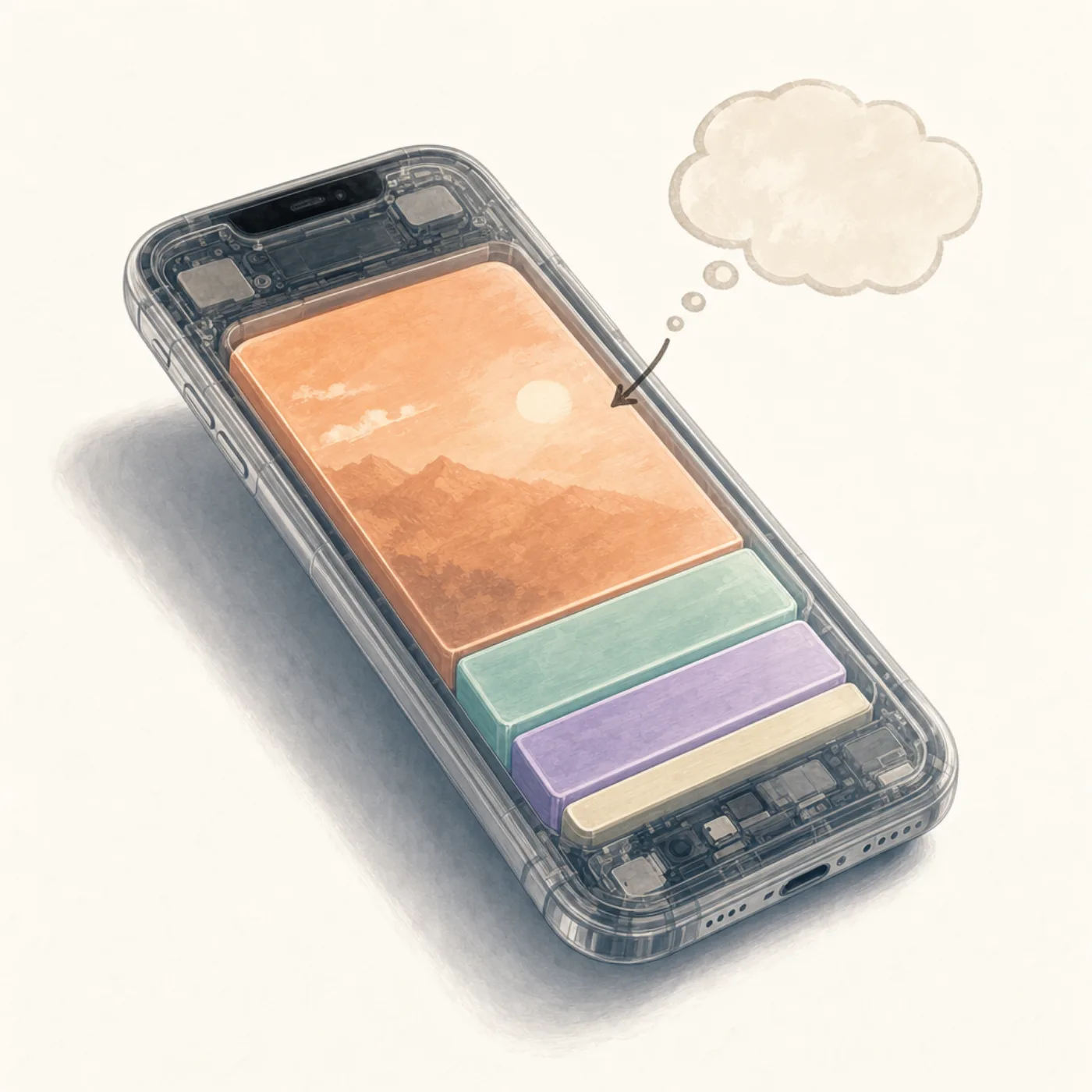
This is the step nine out of ten people miss. When you delete a photo on iPhone, it doesn't free the storage. It moves to Recently Deleted and sits there for 30 days as a safety net.
If you "deleted everything" and storage still says full, this is almost certainly why.
Open Photos > Albums
Scroll all the way down to the Utilities section.
Tap Recently Deleted
iOS 16+ requires Face ID or your passcode to view this album.
Select All > Delete All
Tap Select in the top-right, then Delete All in the bottom-left, then confirm.
You'll know it worked when storage drops within a minute. Don't skip this. Without it, you did all the work and got none of the gigabytes back.
Fix 3: Clear Messages attachmentsLink to section
iCloud has nothing to do with this one. Messages stores every photo, video, and GIF anyone has ever sent you on your physical device, regardless of iCloud.
Go to Settings > General > iPhone Storage > Messages. You'll see a breakdown: Top Conversations, Photos, Videos, GIFs and Stickers. Tap each and delete what you don't need. A single forwarded video can be 300MB.
While you're there, set Settings > Messages > Keep Messages to 30 Days or 1 Year instead of Forever. Old attachments will auto-delete going forward.
Fix 4: Look at the System Data categoryLink to section
If you've done fixes 1–3 and storage is still tight, scroll to the bottom of Settings > General > iPhone Storage and look at System Data. iOS uses this catch-all for caches, logs, downloaded fonts, and stale offline content from apps.
It can grow to 10GB or more. There's no "clean" button. Things that help:
- Restart your iPhone (clears some caches).
- Sign out of and back into iCloud (rebuilds sync caches).
- Offload heavy apps you haven't opened in months: tap the app in iPhone Storage > Offload App. Your data stays; the binary is removed.
You'll know System Data is your real problem when fixes 1–3 free up almost nothing.
You'll know an offload or restart actually moved the needle when Settings > General > iPhone Storage shows the System Data band shrink within an hour. If it doesn't, jump to Fix 5.
Fix 5: Back up, erase, restore (last resort)Link to section
If nothing above worked and storage is still tight, the nuclear option is to back up your iPhone (iCloud or computer), erase it, and restore from backup. iOS occasionally accumulates System Data that only a clean install will release.
It's a multi-hour job. Save it for when you've genuinely exhausted the other four.
Why the camera roll is usually the real culpritLink to section
For most people, the underlying answer to "iPhone full, iCloud empty" is that your camera roll is enormous and Optimize Storage isn't doing enough fast enough. Buying iCloud helps the long-term sync. Cleaning the camera roll helps right now.
A swipe-based cleaner like Favvy lets you fly through whole stretches of your library in one sitting, the kind of cleanup that makes Optimize Storage actually have less to optimize. We compared the 5 best iPhone photo cleaner apps if you want to see the options. For exact duplicates iOS already finds, our duplicates guide covers the built-in tool. For the broader cleanup pattern, see our iPhone storage guide.
A habit that prevents this from happening againLink to section
The reason this paradox exists for most people is that the camera roll grows faster than Optimize Storage can keep up with. The fix is small and weekly: spend one minute every Sunday clearing the past week's bursts, screenshots, and accidental shots.
That's it. A weekly minute keeps your iPhone storage healthy regardless of how full your iCloud gets. Favvy's streak feature is built around exactly this rhythm.
Get the app
Clean the camera roll, not the cloud.
Favvy turns weekly cleanup into a one-minute habit. Free to try, nothing uploaded.


Favvy is free: 100 swipes a day, no account. See what Pro adds →
Frequently asked questions
Why is my iPhone storage full when I have free iCloud space?
Does buying more iCloud free up my iPhone?
What's the difference between Optimize iPhone Storage and Download Originals?
Why does it still say full after I deleted everything?
Get the app
Clean your gallery with Favvy
Swipe to keep or delete. Runs on-device, no account, no uploads. Free to try.
Favvy is free: 100 swipes a day, no account. See what Pro adds →
Keep reading

What Optimize iPhone Storage Actually Does (and Doesn't)
Optimize iPhone Storage doesn't delete a single photo. Here's what the setting really does, why your iPhone is still full, and when to turn it off.

How to Free Up iCloud Storage on iPhone (Without Losing Photos)
iCloud full again? Here's how to free up iCloud storage on iPhone without losing a single photo, in order of how much space each fix actually gives back.
iPhone Storage Still Full After Deleting Photos? Here's Why
Deleted a hundred photos and storage barely moved? The culprit is almost always Recently Deleted. Here's the 30-second fix, plus 4 other reasons storage stays stuck.