Delete Duplicate Photos on iPhone Fast (Even 10,000+)
The iOS Duplicates album is slow and misses similar shots. Here's the 60-second method that clears thousands of duplicate and near-duplicate photos at once.
Favvy TeamUpdated
iPhones are very good at taking five identical pictures of the same thing. You hit the shutter, it takes a burst, you forget, and three months later your Favorites album is 40% blurry coffee cups.
The fix has been built into iOS since version 16, and Apple calls it Merge, not Delete. The Merge action keeps the best version (highest resolution, HDR, Live Photo) and sends the rest to Recently Deleted. You don't lose anything you'd want to keep.
Here's how to merge duplicate photos on iPhone in under three minutes, why iOS uses Merge instead of Delete, and the faster app method for libraries above 10,000 photos.
Does Merge delete your best photo? No, and here's whyLink to section
This is the question that stops most people before they tap the button, so it's worth answering first.
Merge keeps the highest-quality version. When iOS combines a set of duplicates, it does not pick one at random and bin the rest. It evaluates the whole set and keeps the copy with the best resolution, then folds in the metadata from every other copy.
Specifically, the version you keep gets:
- the highest resolution available across the set
- the HDR data, if any copy had it
- the Live Photo motion, if any copy had it
- the combined metadata: keywords, captions, favourite status and album membership from every copy in the set
The lower-quality copies move to Recently Deleted, where they sit for 30 days. So even in the worst case, nothing is gone for a month, and you can restore any of it from Photos > Albums > Recently Deleted.
The one thing Merge will not do is invent quality. If every copy in a set is a low-resolution export, the survivor is a low-resolution export. Merge picks the best of what exists; it doesn't upscale.
Why iPhones pile up duplicates in the first placeLink to section
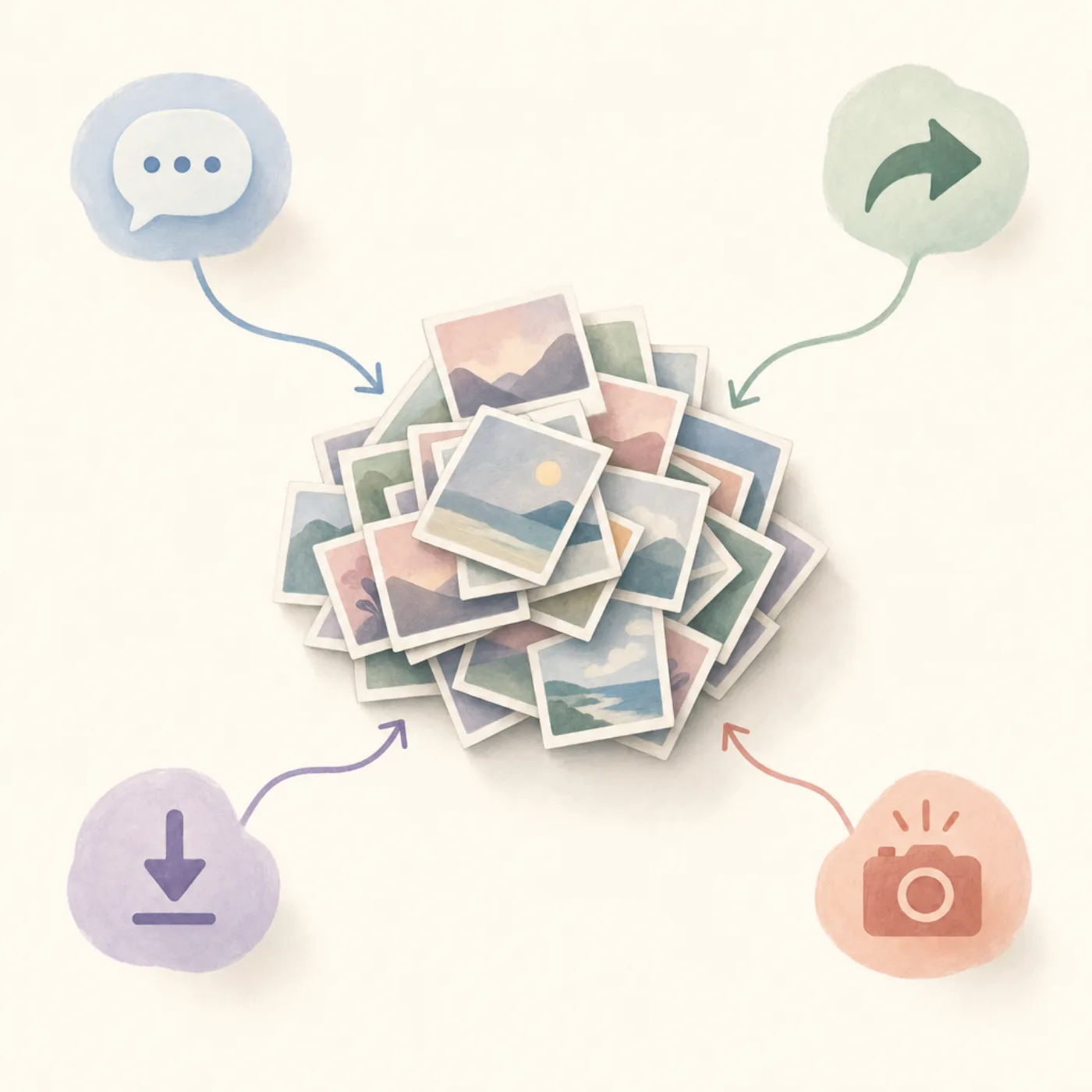
Before the fix, the cause. Knowing where duplicates come from is how you stop the next thousand from arriving.
- Burst mode: a long-press on the shutter takes ten shots. Most people never delete the nine outtakes.
- Editing in place: when you edit a photo, iOS sometimes saves a copy instead of overwriting. The original and the edit both stay.
- AirDrop and Messages: someone sends you a photo you took yourself last weekend. iOS stores a second copy with new metadata.
- iCloud migrations and restores: switching Apple IDs, restoring from a backup, or re-enabling iCloud Photos after it was off can re-import older photos.
- Third-party apps: Instagram, WhatsApp, Telegram, TikTok, and Snapchat all save received images to your camera roll by default. Each of those settings has a toggle to turn off, and turning them off prevents hundreds of duplicates a year.
Most duplicates are exact duplicates: the same file copied twice. iOS catches those automatically. The rest are near duplicates, burst shots and edits where the pixels differ slightly. iOS doesn't catch those; for those, see our guide to deleting similar photos on iPhone.
iOS version compatibilityLink to section
The Duplicates album is an iOS 16 feature. If you're on an older version, you need to update or use Method 2 below.
| iOS version | Duplicates album | Merge action | Notes |
|---|---|---|---|
| iOS 18 / 19 | ✓ | ✓ | Full feature, including video duplicates |
| iOS 17 | ✓ | ✓ | Full feature |
| iOS 16 | ✓ | ✓ | First version with the feature |
| iOS 15 or older | ✗ | ✗ | Update iOS, or use Method 2 |
Devices that support iOS 16+: iPhone 8 and later, plus iPhone SE (2nd gen) and later. Older iPhones are stuck on iOS 15 or earlier and need a cleaner app for any kind of duplicate detection.
If your iPhone supports iOS 16 but you're not on it, update before doing anything else: Settings > General > Software Update. The Duplicates scan only runs after the update is installed and your phone is plugged in overnight.
Method 1: the built-in Duplicates album (free, exact matches only)Link to section
If you're on iOS 16 or later, Apple already built you a duplicate detector. It's just buried under Utilities.
Open Photos > Albums
Tap the Photos app icon, then tap the Albums tab at the bottom of the screen.
Find the Duplicates album
Scroll all the way down past your custom albums and the Media Types section, into Utilities. Tap Duplicates. If you don't see it, either your library is still being scanned or you're on iOS 15 or earlier.
Merge a pair, or Select All to merge everything
Each duplicate pair has a Merge button on the right. Tap it to combine the copies into the highest-quality version. To do them all at once, tap Select in the top-right, then Select All, then Merge.
Confirm the merge
iOS shows a confirmation sheet. The kept version preserves the highest resolution, HDR data, and Live Photo if any copy had one, the other copies go to Recently Deleted.
Empty Recently Deleted
Merged copies linger in Recently Deleted for 30 days before they actually free storage. To get your gigabytes back today, go to Albums > Recently Deleted, tap Select > Delete All, and confirm.
What Merge actually does (it's safer than Delete)Link to section
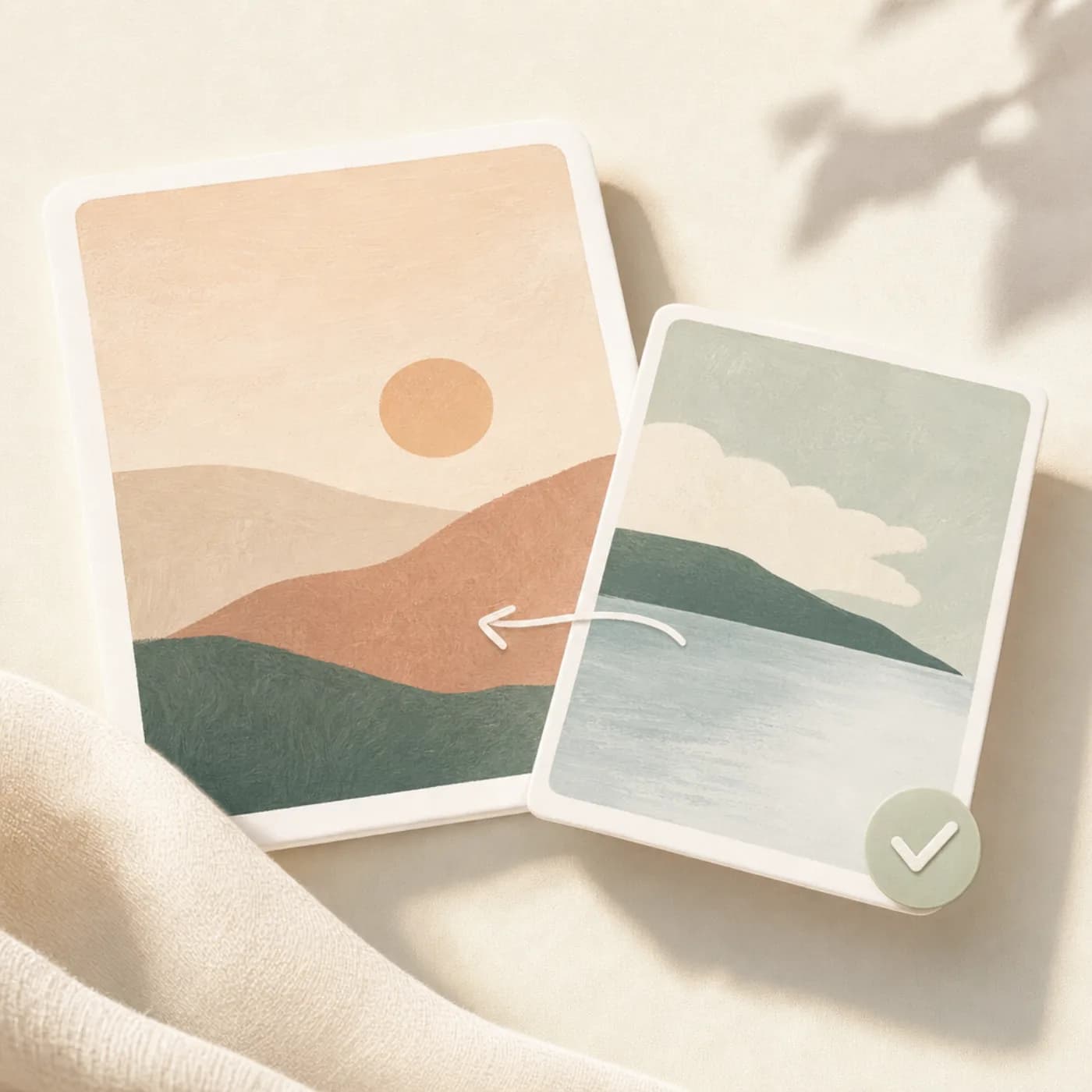
Merge isn't just a friendlier name for Delete. It's a different action:
- iOS scans all the copies in the duplicate set and picks the highest-quality master, best resolution, most metadata, Live Photo data, depth information, HDR.
- It combines metadata from all copies into the master: captions, favorites, album memberships, dates if they differ.
- The non-master copies go to Recently Deleted for 30 days as a safety net.
In practice, this means you can hit Select All > Merge without worrying about losing the version you actually wanted. The keeper is always the best of the bunch.
Method 2: swipe through duplicates and near-duplicates with an appLink to section
The built-in tool only finds exact duplicates, same image, same resolution. It won't catch the ten near-identical shots from a burst, or the photo you re-imported twice after a backup. And, frankly, it's not fun.
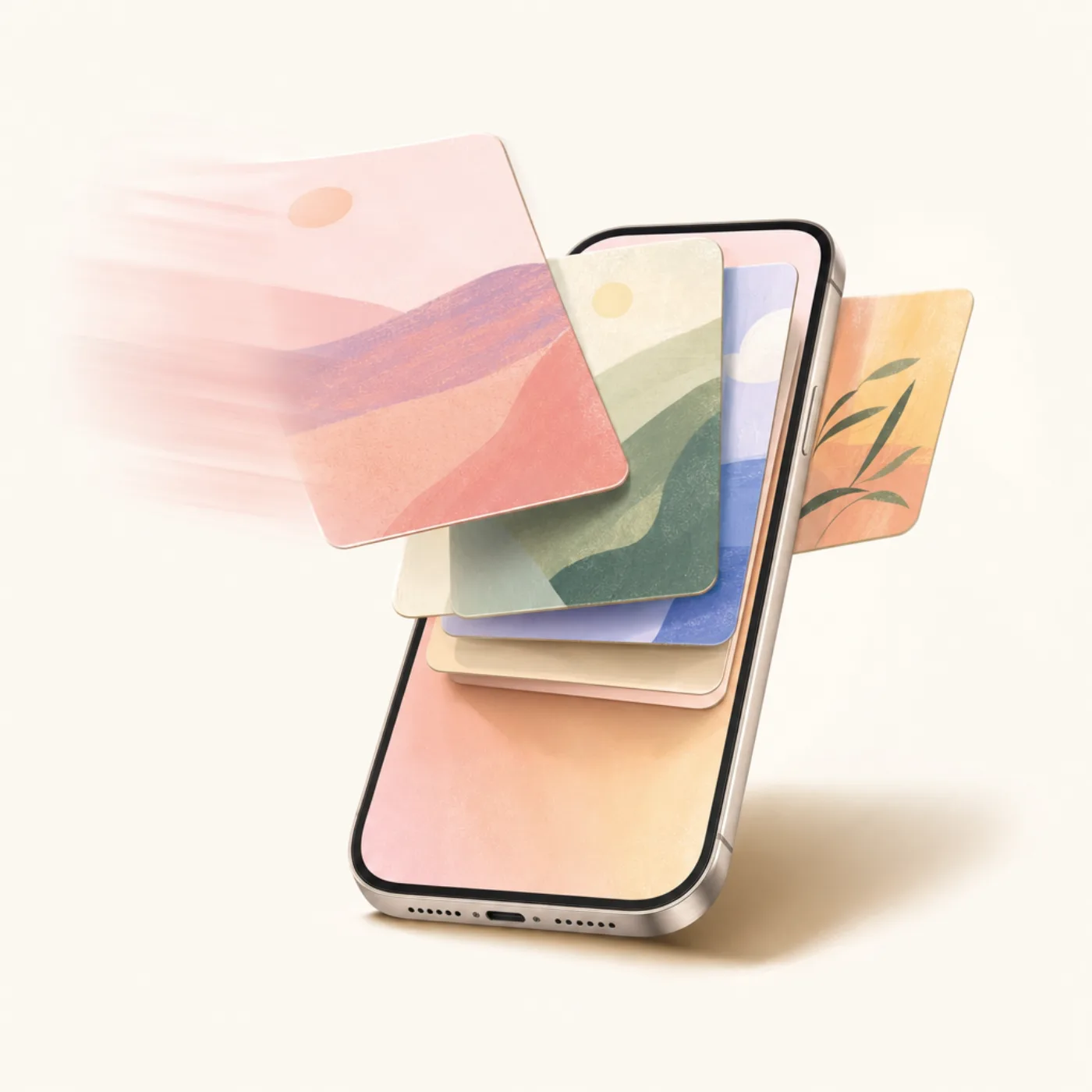
A swipe-to-clean app like Favvy lets you fly through whole stretches of your library. Start in Random or pick a specific month: your bursts and near-duplicates sit side by side, so deleting the extras takes one swipe. (We tested the field, see our honest comparison of the 5 best iPhone photo cleaner apps if you want to compare options.)
Install Favvy
Grab it on iOS or on Android. Free to try, no account, nothing uploaded.
Pick a mode: Random or by Month
Random is fastest for catching duplicates scattered across years. By-month is best when you remember a specific weekend full of burst shots.
Swipe through the pile
Swipe left to delete, right to keep. Nothing is actually removed yet, you're just marking.
Review and confirm
At the end of the session, Favvy shows you everything you marked and asks for confirmation. Tap Confirm and the photos go to Recently Deleted.
Empty Recently Deleted
Same last step as before: Photos > Albums > Recently Deleted > Delete All.
Method 3: the manual way (if you only have a few)Link to section
If your duplicate problem is 20 photos and not 2,000, you don't need an app or the Duplicates album. Open Photos, tap Select in the top-right, tap every copy you don't want, then tap the trash icon. Don't forget to empty Recently Deleted.
This is also the right method if you're on iOS 15 or earlier and can't update for some reason.
Which method should you use?Link to section
| Feature | iOS Duplicates album | Favvy |
|---|---|---|
| Built-in to iPhone | ✅ | ✗ |
| Requires iOS 16+ | ✅ | ✗ |
| Finds exact duplicates | ✅ | ✅ |
| Catches bursts and near-duplicates | ✗ | Yes, via Random/month modes |
| Sort by month / Screenshots / Videos | ✗ | ✅ |
| Fast on libraries over 10,000 photos | ✗ | ✅ |
| Keeps the highest-quality copy automatically | ✅ | Yes, via per-card review |
For most people the honest answer is both:
- First pass: the built-in Duplicates album for the exact matches. It's free, it's accurate, and Merge is safer than manually choosing keepers.
- Second pass: a swipe-based cleaner for the near-duplicates, burst shots, screenshots, and Live Photo waste that the iOS tool can't see.
Most people stop after step 1 and wonder why their camera roll is still full. The reason is almost always step 2.
How much storage will this actually free?Link to section
Realistic numbers from a typical 128GB iPhone with three or four years of camera-roll history:
- Exact duplicates: 0.5–2 GB. Smaller than people expect, because iOS catches them automatically, most modern iPhones don't accumulate huge numbers of perfect duplicates anymore.
- Near-duplicates and burst shots: 5–15 GB. This is where the gigabytes are hiding. Burst groups, edited copies, Live Photo stills, AirDrop re-imports.
- Screenshots, blurry shots, Live Photo waste: another 3–8 GB on most libraries.
The Duplicates album solves the first bucket. A swipe cleaner solves the other two. If you do both, expect to recover 10–20 GB in a single session on a typical four-year-old library.
Prevent the next thousand duplicatesLink to section
The cleanup is the easy part. Preventing the next pile is the part most people skip:
- Turn off auto-save in WhatsApp, Instagram, and Telegram. Each app has a toggle in its settings (usually called "Save to Camera Roll" or "Save to Photos"). Those three combined account for hundreds of saved-image duplicates a year.
- Stop using Burst mode by default. Long-press the shutter is a habit; for most shots, a single tap is enough.
- Edit in place, don't save a copy. In Photos, tap a photo > Edit > make your changes > Done. iOS preserves the original; you can always Revert.
- Don't AirDrop to yourself. If you took the photo on your iPhone, it's already on your iPhone.
- One-minute weekly habit. A 60-second sweep through the prior week's camera roll prevents almost all accumulation. Favvy's streak feature is built around exactly this rhythm.
If your iPhone is full despite a clean camera roll, the issue is somewhere else, see iPhone storage full but iCloud has space for the mental model, or the full 8-step storage guide for everything else worth checking.
Get the app
Find every burst and near-duplicate the iOS tool misses.
Favvy groups near-duplicates the iPhone Photos app can't see. Free to try. Nothing uploaded.


Favvy is free: 100 swipes a day, no account. See what Pro adds →
Frequently asked questions
How do I merge duplicate photos on iPhone?
Does merging delete the original photo?
Why doesn't my iPhone show a Duplicates album?
What's the fastest way to delete duplicates on iPhone?
Will the iPhone Duplicates album catch burst shots and near-duplicates?
Get the app
Clean your gallery with Favvy
Swipe to keep or delete. Runs on-device, no account, no uploads. Free to try.
Favvy is free: 100 swipes a day, no account. See what Pro adds →
Keep reading

What Optimize iPhone Storage Actually Does (and Doesn't)
Optimize iPhone Storage doesn't delete a single photo. Here's what the setting really does, why your iPhone is still full, and when to turn it off.

How to Free Up iCloud Storage on iPhone (Without Losing Photos)
iCloud full again? Here's how to free up iCloud storage on iPhone without losing a single photo, in order of how much space each fix actually gives back.
iPhone Storage Still Full After Deleting Photos? Here's Why
Deleted a hundred photos and storage barely moved? The culprit is almost always Recently Deleted. Here's the 30-second fix, plus 4 other reasons storage stays stuck.