How to Delete Similar Photos on iPhone (What the Duplicates Album Misses)
Similar photos aren't duplicates, and iOS won't catch them. Here's how to find and delete near-identical shots, bursts, and edits on iPhone in 2026.
Favvy Team
You open the Photos app, run the built-in Duplicates tool, and it tells you you're done. Then you scroll through October 2024 and see eight near-identical shots of the same sunset. iOS isn't lying, those photos aren't exact duplicates. They're similar photos, and the Duplicates album doesn't see them.
Here's how to find and delete similar photos on iPhone, why iOS misses them, and the fastest way to clear hundreds of bursts in one sitting.
Why iOS misses similar photosLink to section
The Duplicates album in Photos > Albums > Utilities > Duplicates runs an exact-match algorithm. If two files have the same pixels, the same dimensions, the same metadata fingerprint, iOS flags them. Anything else gets a pass. (For exact duplicates only, our step-by-step duplicates guide covers the iOS tool, an app method, and the manual approach.)
That's most of your near-duplicates.
A burst of ten shots: ten different files, ten different timestamps, ten slightly different framings. Not duplicates. A photo you edited and saved as a copy: different pixels, different file. Not a duplicate. A picture someone re-AirDropped to you a month later: same image, different metadata. Often not flagged.
The result is a Duplicates album that says you're tidy, and a camera roll that's still mostly burst shots.
Method 1: scroll through bursts and pick the keepersLink to section
If your similar-photo problem is small (a few hundred photos), the Photos app has just enough tools to handle it manually.
Open Photos in Months or Days view
Tap the Photos tab and use the Months or Days segmented control at the top. iOS already groups bursts and near-identical shots together visually.
Tap a stack to expand it
When you see a thumbnail with a small stack icon in the corner, tap it. iOS shows you every shot in the burst.
Tap Select, then choose the keepers
In the top-right, tap Select. Tap the one or two shots worth keeping. Then tap the share/menu icon and choose Keep Only Favorites if available, or manually deselect the keepers and tap the trash on the rest.
Empty Recently Deleted
Photos > Albums > Recently Deleted > Select > Delete All. Otherwise the storage doesn't actually free up for 30 days.
This works. It's also slow. A library with 500 burst groups is a multi-hour job in the Photos app, the UI isn't built for bulk decisions.
Method 2: swipe through similar photos with a cleaner appLink to section
A swipe-based cleaner like Favvy is built for exactly this. You open the app, pick a month (or use Random for a full library pass), and your bursts and near-duplicates come up next to each other. Swipe left to delete, right to keep. Nothing is removed until you tap Confirm at the end of the session.
The reason this is faster than the Photos app: your decisions are small and the friction between them is zero. In the Photos app each "should I delete this?" requires three taps. In a swipe cleaner, it's one swipe.
In our own test of a ~12,000-photo library, the swipe method cleared a burst-heavy month in under four minutes. The same job done manually in the Photos app took us closer to thirty.
Install Favvy
Grab it on iOS or Android. Free tier, no account, nothing uploaded.
Pick By Month or Random
By Month is best when you remember a specific weekend full of bursts. Random is best for a full-library sweep, you'll catch similar shots from years you forgot about.
Swipe through the pile
Left to delete, right to keep. Burst groups will sit next to each other, so deleting the extras feels obvious.
Review and confirm
Favvy shows you everything you marked at the end of the session. Tap Confirm and the photos move to Recently Deleted.
Empty Recently Deleted
Same final step: Photos > Albums > Recently Deleted > Delete All.
If you want to compare swipe cleaners against apps that group similars automatically, we covered the tradeoffs in our honest comparison of the 5 best iPhone photo cleaner apps.
Method 3: let the app pre-group, then confirmLink to section
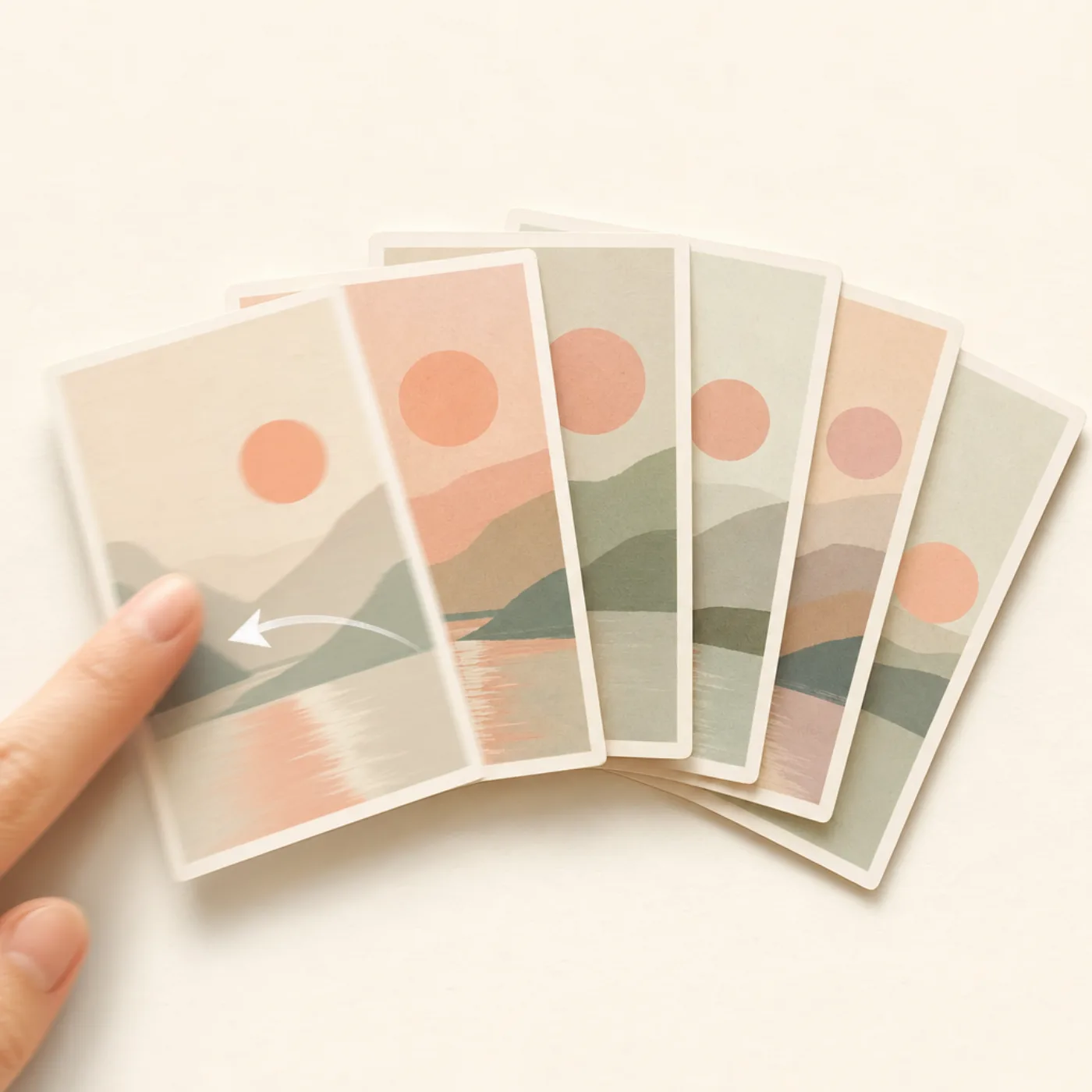
Some cleaners (Clever Cleaner, CleanMy®Phone) automatically pre-group similar shots before you start. Instead of seeing them one at a time, you see a "this group has 8 similar photos" tile and decide for the whole group at once. Favvy does this too, surfacing similar shots and bursts together as you swipe.
This is the fastest approach on huge libraries (20,000+ photos). The tradeoff is trust: you're letting the app decide what counts as "similar," and occasionally it'll group two genuinely different photos. Always review the group before tapping delete.
Which method should you use?Link to section
- Library under 2,000 photos: Method 1 (the Photos app). It's free and you'll be done in an evening.
- Library 2,000–15,000 photos and you want it to feel like a small ritual: Method 2 (swipe cleaner like Favvy). One sitting, satisfying, you're in control.
- Library 15,000+ and you want to be done as fast as possible: Method 3 (automatic grouping). Confirm the groups, move on.
How to stop accumulating similar photosLink to section
The cleanup is the second-easiest fix. The first-easiest is preventing the next thousand:
- Turn off "Save to Camera Roll" in WhatsApp and Instagram. Those two alone account for a few hundred saved-image duplicates a year for most users.
- Stop using Burst mode by default. Long-press the shutter is a habit; tap-once works for most shots.
- When you edit, edit in place instead of saving a copy. Photos > tap the photo > Edit > make your changes > Done. iOS preserves the original, you can always Revert.
- Don't AirDrop to yourself. If you take a photo on your iPhone, it's already on your iPhone.
A weekly one-minute swipe through the prior week's camera roll prevents almost all accumulation. Favvy's streak feature is built around exactly this rhythm.
Get the app
Find every burst, edit, and near-duplicate in one swipe session.
Favvy groups similar photos by month so you can clear hundreds in two minutes. Free tier, nothing uploaded.


Favvy is free: 100 swipes a day, no account. See what Pro adds →
Frequently asked questions
What's the difference between duplicate and similar photos on iPhone?
Can iOS delete similar photos automatically?
Will I lose the best version of a similar photo set?
Why do I have so many similar photos in the first place?
Get the app
Clean your gallery with Favvy
Swipe to keep or delete. Runs on-device, no account, no uploads. Free to try.
Favvy is free: 100 swipes a day, no account. See what Pro adds →
Keep reading

How to Clean Up Your iPhone Camera Roll (The Fast Way)
Your camera roll is a mess and deleting one photo at a time is hopeless. Here's how to clean up thousands of iPhone photos in one sitting, the fast way.
The Best Free iPhone Photo Cleaner App in 2026 (No Trial-Wall)
Most 'free' photo cleaners hit you with a weekly-subscription paywall on launch. Here are the genuinely free iPhone photo cleaner apps in 2026 that actually work.
The 5 Best iPhone Photo Cleaner Apps in 2026 (Honestly Reviewed)
We tested every iPhone photo cleaner app worth installing in 2026. Here are the honest five, which is best free, best paid, and which to skip.